
Set project status and reason
Open the project and choose Running, Blocked, or Paused in the status field. For Blocked or Paused, the field What is it waiting on? appears. Add something like Waiting on client approval and confirm with Enter or by leaving the field.
- Running
- The project is being actively worked on. Open blocked tasks can still make it show up as stuck in the Daily Overview.
- Blocked
- The project is stuck and is treated accordingly in the Daily Overview.
- Paused
- The project is deliberately on hold. It isn't shown as stuck in the Daily Overview, even if blocked tasks remain.
Add a task directly
Under Tasks, create a task with the project assigned automatically.
- Enter the title in Add new task…
- Confirm with Enter or the plus button.
- The new task appears with the Todo status.
- Click the task name to add details like assignee, priority, and due date.
Filter tasks and change status
Use All, Todo, Active, or Done above the task list. Active shows only tasks with the In progress status. Click the status icon in front of a task to choose Todo, In progress, Done, or Backlog. A task status doesn't change a manually set project status.
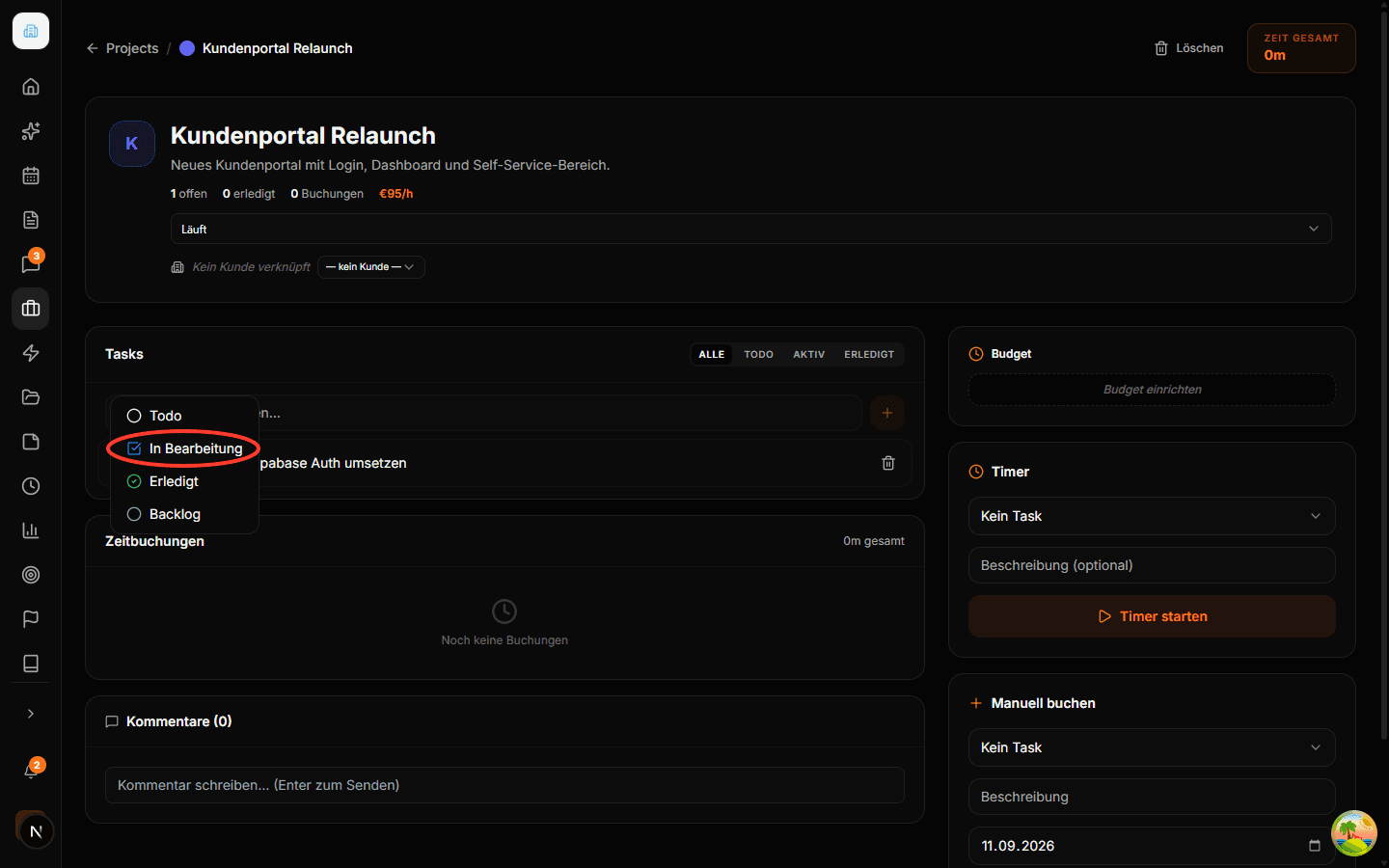
Assign existing tasks
Open an existing task in the Tasks module and choose the project in its properties. Then check the task list in the project. The quick form inside the project, on the other hand, creates a new task.
See the tasks documentation for more details.
Comment on agreements
Scroll to Comments, write your text, and send it with Enter. Use Shift+Enter to add a line break. Record decisions, questions, or handoffs concretely, for example Approved draft B; implementation can start.
Mind visibility and notifications
Comments are visible to members with access to the project in the organization. New comments trigger a notification to the other organization members; the preview text includes an excerpt of the comment. Linking a client isn't an invitation for that client. You can remove your own comments via the trash icon and the Delete comment? confirmation.
Common pitfalls
Active doesn't mean all open tasks
Backlog and Todo are missing from the Active filter. Use All if you want to check the project's full task list.
Other people's comments stay put
The UI shows a delete icon even on other people's comments. You can only permanently delete your own comments. Someone else's comment can briefly disappear after a click and reappear after a reload.
Frequently asked questions
Does Paused stop a running timer?
The status change doesn't control the timer. Stop a running entry separately via Stop timer.
Why is a project with Running status still stuck?
Open tasks marked as blocked can trigger that flag in the Daily Overview. Check the affected tasks and why they're blocked.
Can I edit a comment?
Project comments currently offer no edit action. Add a correction as a new comment, or delete your own comment and write it again.