
Open the project overview
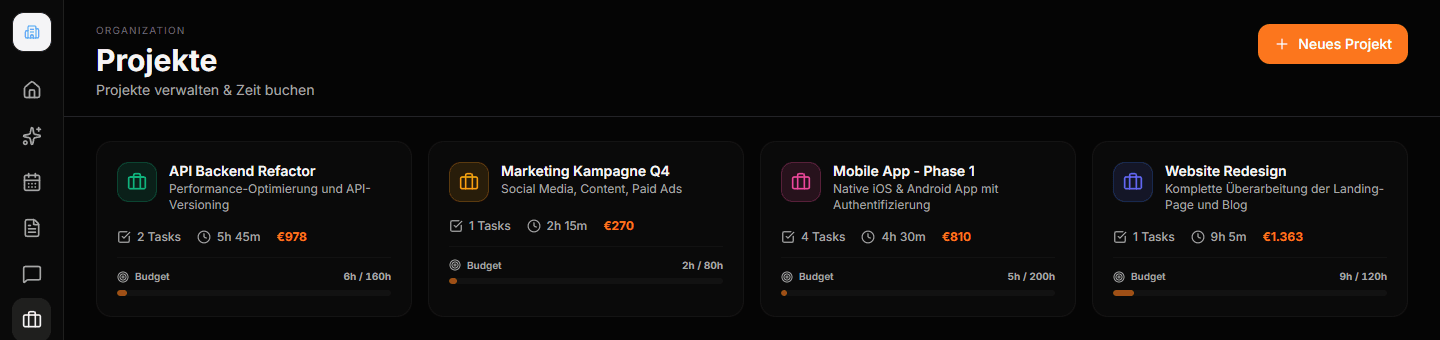
Open Projects in the navigation. The cards show name, description, task count, and logged time. With an hourly rate set, a computed monetary value appears; with an hour budget, a progress bar appears. Click a card to open the project.
Create a new project
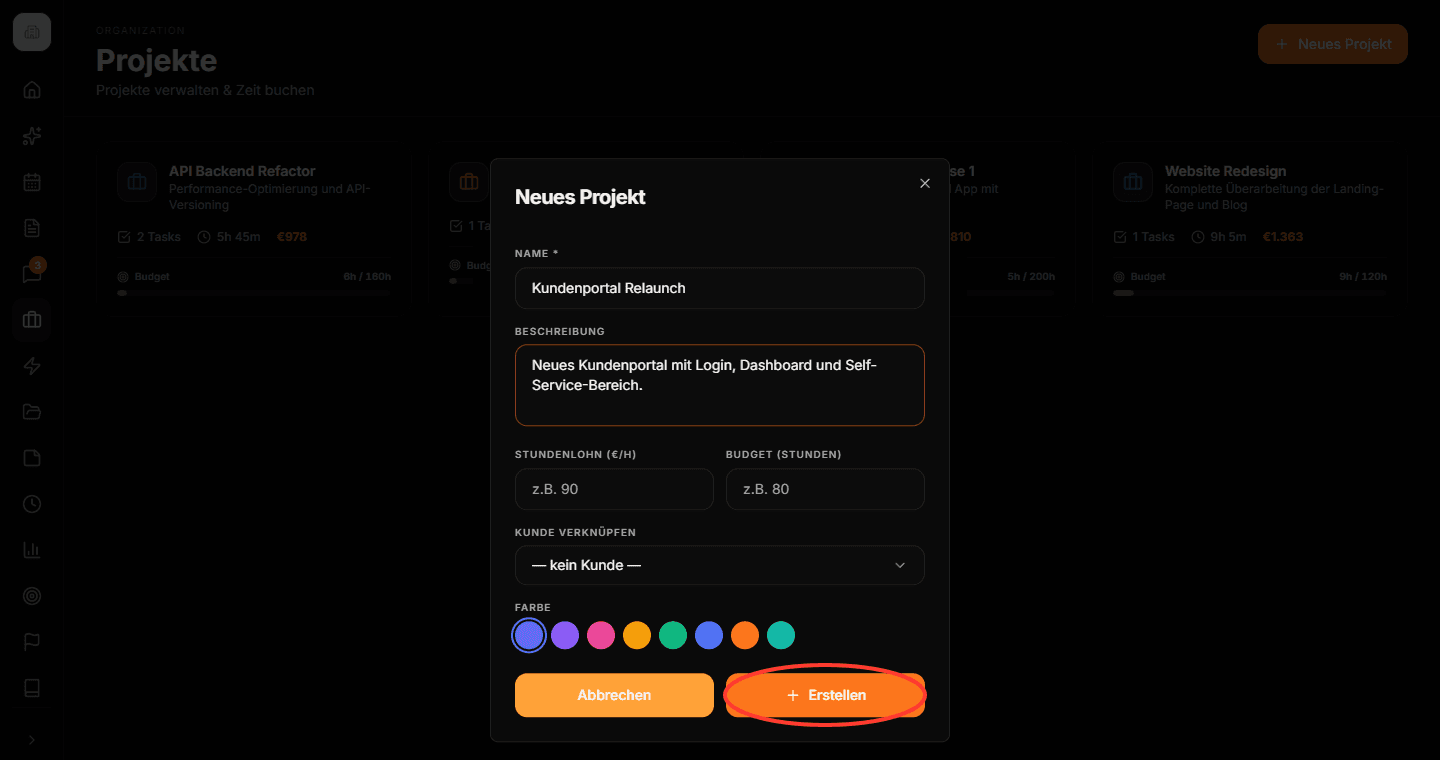
Click New Project. Only the name is required; you can add the rest during initial setup.
- Hourly rate (€/h)
- Project hourly rate for the cost display: logged project hours × current hourly rate. This display is not an invoice and not a profitability calculation.
- Budget (hours)
- A simple hour limit for the progress bar in the project overview. This field doesn't set up a budget in the Budgeting module yet.
- Link client
- One CRM contact per project. The link can be changed or removed later in the project.
- Enter a unique project name, for example Website Relaunch.
- Briefly describe the goal and scope.
- Enter an hourly rate and an hour budget if needed.
- Choose an existing CRM contact under Link client.
- Pick a color to tell it apart visually, and click Create.
Read the detail view
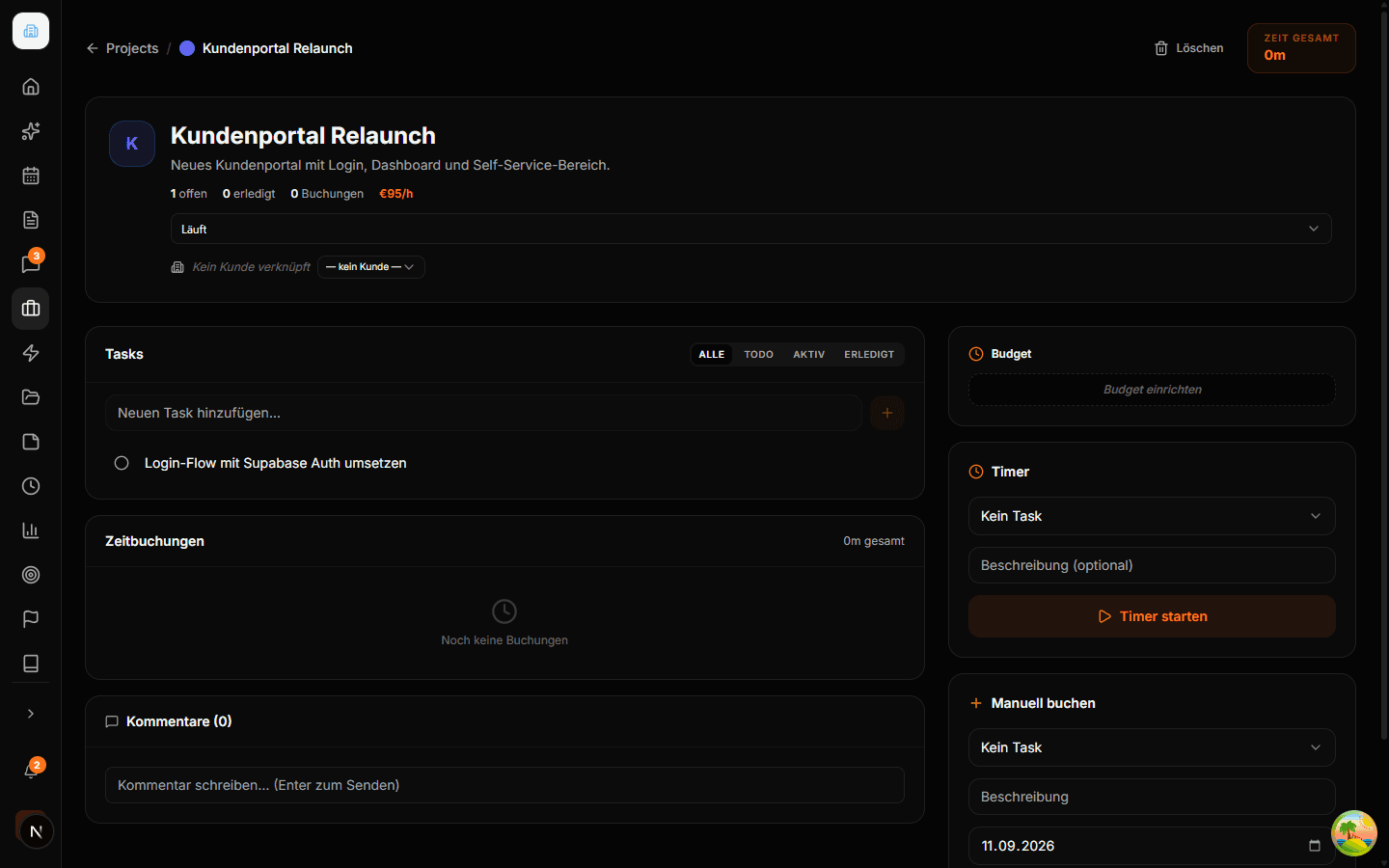
At the top are the project details, open and completed tasks, the number of time entries, and total time. On the left you'll find Tasks, Time entries, and Comments; on the right, Budget, Timer, and Log manually. Total time sums up saved entry durations; the running timer display is separate from that.
Change client and hourly rate
In the client field, choose another contact or — No client —. Use the linked name to open the CRM contact. Click the hourly rate, or Set hourly rate, enter the value, and confirm with Enter or by leaving the field. A change also affects the monetary value calculated from past project hours. Name, description, and color currently have no dedicated edit fields in this detail view.
Set up the right budget
For Hour budget, Fixed price, Time & materials, Non-billable, or Retainer, open Set up budget on the right. Saving this budget requires the Owner or Admin role. The budget is separate from the hour limit in the create form — that's why Set up budget can still appear even though the project card already shows an hour bar.
You'll find the steps and calculation differences under Set up a project budget. For usage, rates, and expenses, see Use Budgeting.
Keep working in the project
Create the first tasks, keep status and comments up to date, and log the time actually worked.
Delete a project
Open Delete inside the project, check the project name in the dialog, and enter it to confirm. Only then does Delete permanently become available. Use Paused if you only want to pause the work and keep the project in the overview.
- Before deleting, check tasks, time entries, and any comments you need.
- Open Delete and enter the shown project name.
- Confirm Delete permanently only if the project should be removed for good.
Common pitfalls
The delete dialog's wording is inaccurate
The dialog announces that related time entries will be deleted. Under the current database schema, however, tasks and time entries are kept and just lose their project assignment. Project comments and linked budgets are deleted along with the project. This view offers no restore action.
Project limit reached
The number of projects you can create depends on the organization's plan. If you see a matching error message, check the plan with your organization admin.
Frequently asked questions
Do I need a client before creating a project?
No. You can start without a client link and assign a CRM contact later.
Why is the budget card empty despite an hour budget?
The hour limit from the create form and the budget under Set up budget are stored separately. Also set up the budget for Budgeting.
Is there a Done project status?
The project status options are Running, Blocked, and Paused. Done is a task status; it doesn't automatically close the project.